
Turn the Message into a Flat-Discount Coupon
What We’re Building in This Chapter
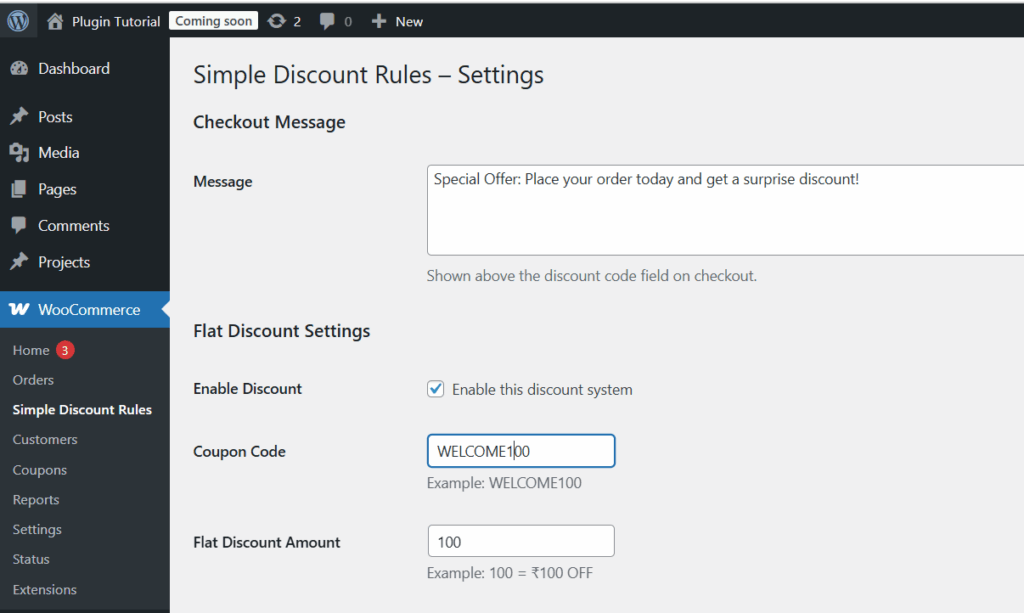
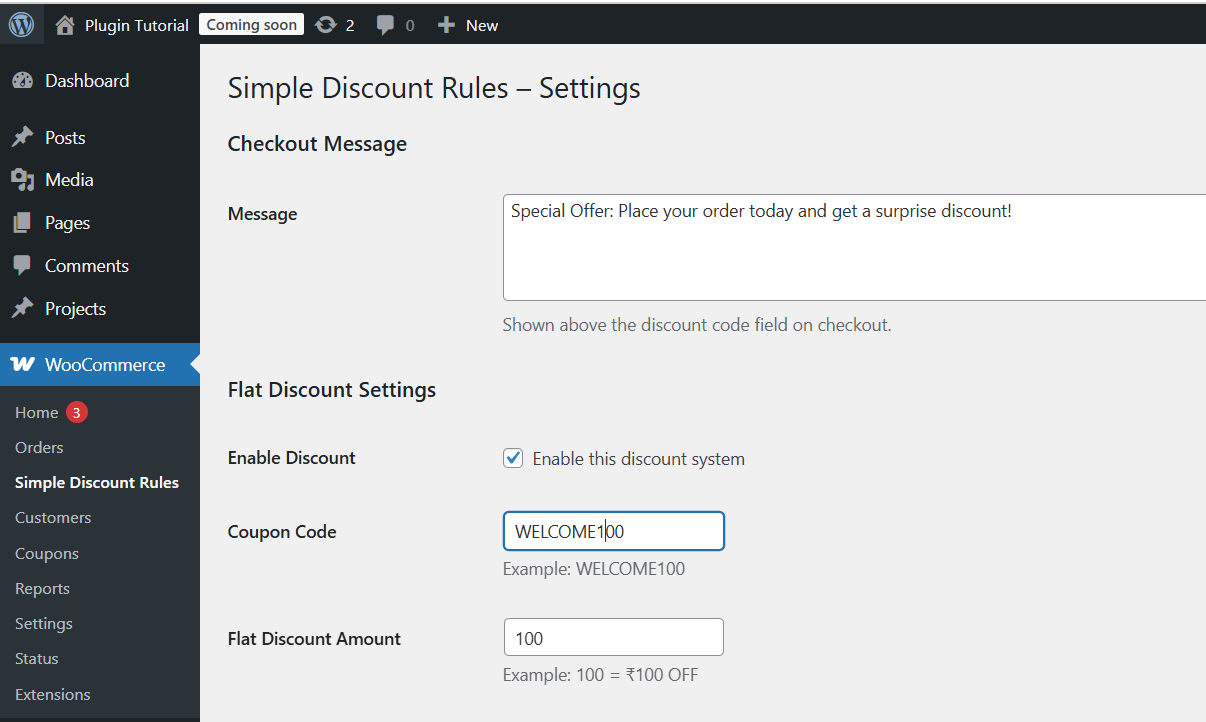
- In admin (WooCommerce → Simple Discount Rules) you can set:
- ✅ Enable/disable the discount
- ✅ Coupon code (e.g., WELCOME100)
- ✅ Flat discount amount (e.g., 100, meaning ₹100)
- On the checkout page:
- The customer sees a new field: “Special discount code”
- If they enter the correct code:
- A flat amount is subtracted from the cart as a fee (negative fee)
- They see the discounted total
We’ll do this in three parts:
- Extend the admin settings
- Add a checkout field
- Apply the discount via WooCommerce fees
1. Extend the Admin Settings (Enable + Code + Flat Amount)
We’ll reuse the same settings page we created in Chapter 2.
Now we’ll add three new settings:
- sdr_enable_discount – checkbox (yes/no)
- sdr_coupon_code – text
- sdr_flat_discount_amount – number
1.1. Update the form submission handler
In your simple-discount-rules.php, find the function:
function sdr_handle_settings_form_submit() {
// …
}
Replace it with this updated version:
/**
 * Handle saving of settings form.
 */
function sdr_handle_settings_form_submit() {

    if ( ! isset( $_POST['sdr_settings_submit'] ) ) return;

    // Verify nonce
    if ( ! isset( $_POST['sdr_settings_nonce'] ) || ! wp_verify_nonce( wp_unslash( $_POST['sdr_settings_nonce'] ), 'sdr_save_settings' ) ) {
        return;
    }

    if ( ! current_user_can( 'manage_woocommerce' ) ) return;

    /* SAVE FIELDS */

    // Checkout helper message
    $message = isset($_POST['sdr_checkout_message']) ? wp_kses_post( wp_unslash($_POST['sdr_checkout_message']) ) : '';
    update_option( 'sdr_checkout_message', $message );

    // Enable discount
    $enable = isset($_POST['sdr_enable_discount']) && $_POST['sdr_enable_discount'] === 'yes' ? 'yes' : 'no';
    update_option( 'sdr_enable_discount', $enable );

    // Coupon code
    $coupon = isset($_POST['sdr_coupon_code']) ? sanitize_text_field($_POST['sdr_coupon_code']) : '';
    update_option( 'sdr_coupon_code', $coupon );

    // Flat discount amount
    $amount = isset($_POST['sdr_flat_discount_amount']) ? floatval($_POST['sdr_flat_discount_amount']) : 0;
    if ( $amount < 0 ) $amount = 0;
    update_option( 'sdr_flat_discount_amount', $amount );

    // Show success message
    add_settings_error( 'sdr_messages', 'sdr_message', __( 'Settings saved.', 'simple-discount-rules' ), 'updated' );
}
add_action( 'admin_init', 'sdr_handle_settings_form_submit' );
1.2. Update the settings page HTML
Now update sdr_render_settings_page() to show these new fields.
Find:
function sdr_render_settings_page() {
// …
}
Replace it with:
<?php
/**
 * Render Settings Page.
 */
function sdr_render_settings_page() {

    // Load current values or fallback defaults
    $current_message = get_option(
        'sdr_checkout_message',
        __( 'Enter your special discount code at checkout to claim the offer.', 'simple-discount-rules' )
    );

    $enable_discount = get_option('sdr_enable_discount', 'no');
    $coupon_code     = get_option('sdr_coupon_code', '');
    $flat_amount     = get_option('sdr_flat_discount_amount', 0);

    // Print admin notices
    settings_errors( 'sdr_messages' );
?>
<div class="wrap">
    <h1><?php esc_html_e( 'Simple Discount Rules – Settings', 'simple-discount-rules' ); ?></h1>

    <form method="post" action="">
        <?php wp_nonce_field( 'sdr_save_settings', 'sdr_settings_nonce' ); ?>

        <h2><?php esc_html_e( 'Checkout Message', 'simple-discount-rules' ); ?></h2>
        <table class="form-table" role="presentation">
            <tbody>
                <tr>
                    <th scope="row">
                        <label for="sdr_checkout_message"><?php esc_html_e( 'Message', 'simple-discount-rules' ); ?></label>
                    </th>
                    <td>
                        <textarea name="sdr_checkout_message" id="sdr_checkout_message" rows="5" class="large-text"><?php echo esc_textarea($current_message); ?></textarea>
                        <p class="description"><?php esc_html_e( 'Shown above the discount code field on checkout.', 'simple-discount-rules' ); ?></p>
                    </td>
                </tr>
            </tbody>
        </table>

        <h2><?php esc_html_e( 'Flat Discount Settings', 'simple-discount-rules' ); ?></h2>
        <table class="form-table" role="presentation">
            <tbody>
                <tr>
                    <th scope="row"><?php esc_html_e( 'Enable Discount', 'simple-discount-rules' ); ?></th>
                    <td>
                        <label>
                            <input type="checkbox" name="sdr_enable_discount" value="yes" <?php checked($enable_discount, 'yes'); ?>>
                            <?php esc_html_e( 'Enable this discount system', 'simple-discount-rules' ); ?>
                        </label>
                    </td>
                </tr>

                <tr>
                    <th scope="row">
                        <label for="sdr_coupon_code"><?php esc_html_e( 'Coupon Code', 'simple-discount-rules' ); ?></label>
                    </th>
                    <td>
                        <input type="text" name="sdr_coupon_code" id="sdr_coupon_code" value="<?php echo esc_attr($coupon_code); ?>" class="regular-text">
                        <p class="description"><?php esc_html_e( 'Example: WELCOME100', 'simple-discount-rules' ); ?></p>
                    </td>
                </tr>

                <tr>
                    <th scope="row">
                        <label for="sdr_flat_discount_amount"><?php esc_html_e( 'Flat Discount Amount', 'simple-discount-rules' ); ?></label>
                    </th>
                    <td>
                        <input type="number" name="sdr_flat_discount_amount" id="sdr_flat_discount_amount" value="<?php echo esc_attr($flat_amount); ?>" min="0" step="0.01" class="small-text">
                        <p class="description"><?php esc_html_e( 'Example: 100 = ₹100 OFF', 'simple-discount-rules' ); ?></p>
                    </td>
                </tr>
            </tbody>
        </table>

        <?php submit_button( __( 'Save Changes', 'simple-discount-rules' ), 'primary', 'sdr_settings_submit' ); ?>
    </form>
</div>
✅ After this change, your settings page now lets you enable the feature, set a coupon code, and choose how much flat discount to give.
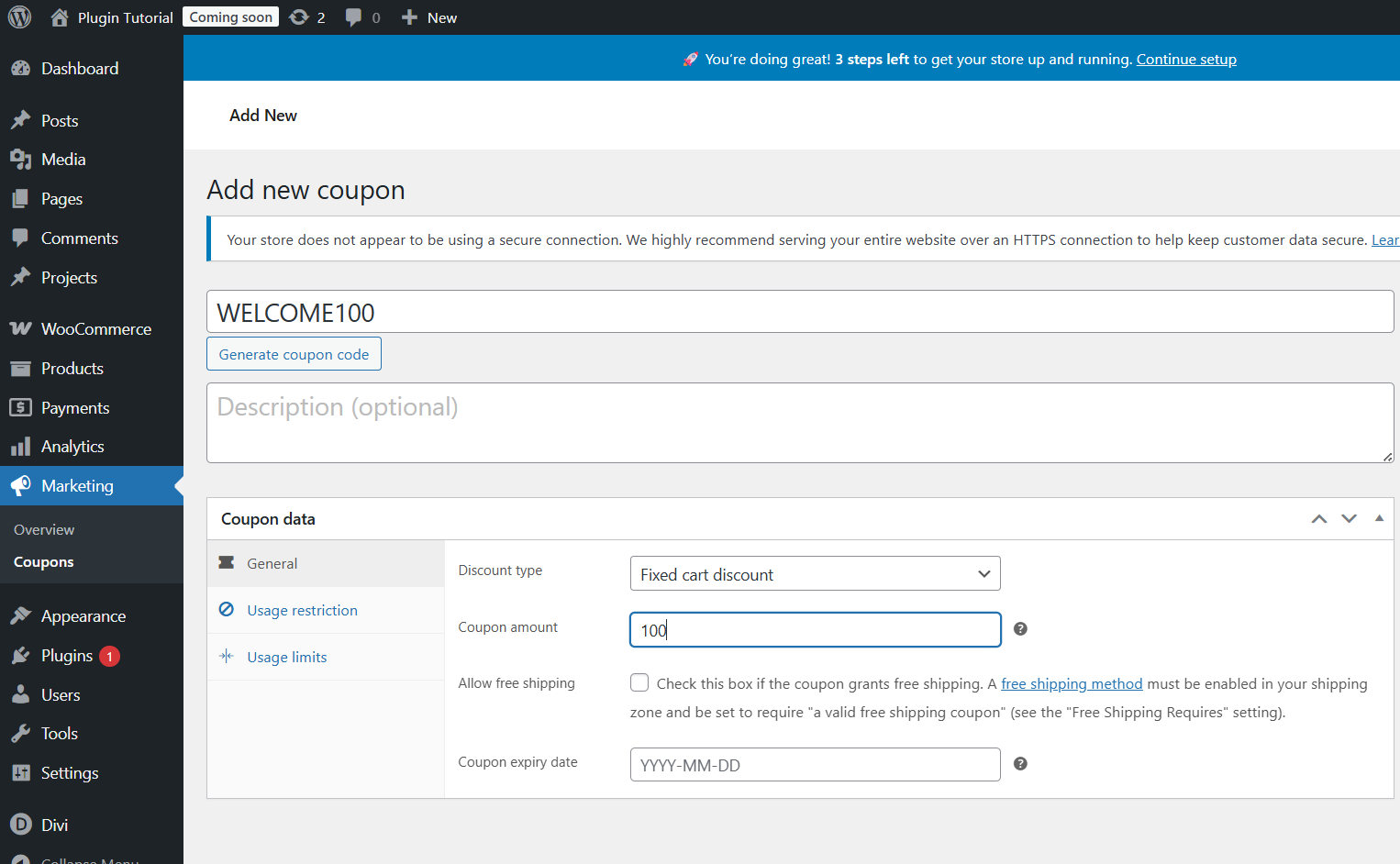
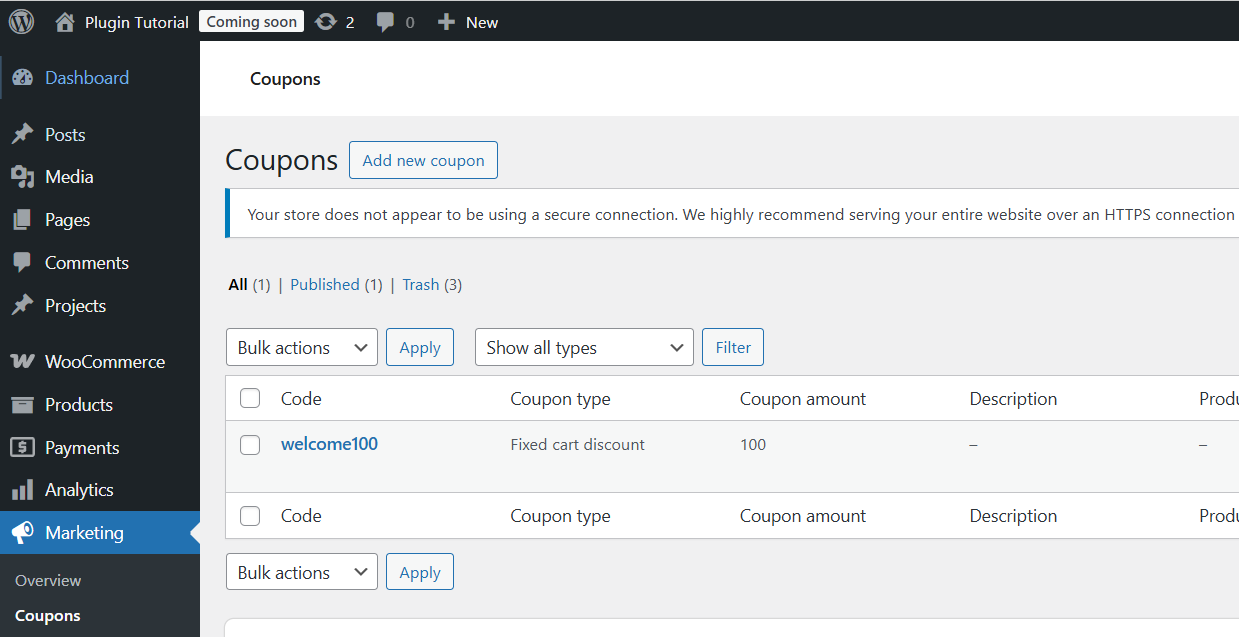
2. Add a Discount Code Field on the Checkout Page
Instead of a floating form above checkout, we’ll integrate with WooCommerce’s checkout fields system. That way:
- The field looks like other checkout inputs
- WooCommerce handles field re-population and layout
- We can easily read the value when calculating discounts
2.1. Add a custom checkout field
Add this code to simple-discount-rules.php:
<?php
/* ----------------------------------------------------------
   4. ADD DISCOUNT CODE FIELD IN CHECKOUT
---------------------------------------------------------- */
function sdr_add_discount_checkout_field( $fields ) {

    $fields['billing']['sdr_coupon_code'] = array(
        'type'        => 'text',
        'label'       => __( 'Special Discount Code', 'simple-discount-rules' ),
        'placeholder' => __( 'Enter discount code (optional)', 'simple-discount-rules' ),
        'required'    => false,
        'class'       => array('form-row-wide'),
        'priority'    => 999,
    );

    return $fields;
}
add_filter( 'woocommerce_checkout_fields', 'sdr_add_discount_checkout_field' );
?>
This will show a new text input on the checkout page under the billing fields.
2.2. Show our helper message above the field
We’ll show the “Checkout Helper Message” we configured in settings near the field, so customers know there is an offer.
Add this:
<?php
/* ----------------------------------------------------------
   3. SHOW HELPER MESSAGE ABOVE BILLING FIELDS
---------------------------------------------------------- */
function sdr_show_checkout_helper_message() {

    if ( ! sdr_is_woocommerce_active() ) return;

    $msg = get_option('sdr_checkout_message', '');

    if ( empty($msg) ) return;

    echo '<div style="padding:12px; background:#eef7ff; border-left:4px solid #2271b1; margin-bottom:15px;">';
    echo wp_kses_post( wpautop($msg) );
    echo '</div>';
}
add_action( 'woocommerce_before_checkout_billing_form', 'sdr_show_checkout_helper_message', 5 );
?>
🔄 You can now remove the old sdr_checkout_hello_message() function and its add_action() from Chapter 1, because this new helper message replaces it.
3. Apply the Flat Discount When Code Matches
Now comes the money part.
WooCommerce lets you modify totals using the woocommerce_cart_calculate_fees hook. We’ll:
- Check if the plugin is enabled and configured
- Read the entered code from checkout or session
- If it matches the configured admin code, apply a negative fee (discount)
3.1. Store the entered code in session
We want the discount to persist as the user navigates in checkout (e.g., shipping changes, refresh). The simplest approach:
- On each request, if $_POST[‘sdr_coupon_code’] is present → save it to WC()->session
- If not in $_POST, read it from session during fee calculation
Add this:
<?php
/* ----------------------------------------------------------
   5. SAVE ENTERED CODE IN SESSION (checkout AJAX updates)
---------------------------------------------------------- */
function sdr_capture_discount_code_to_session() {

    if ( isset($_POST['sdr_coupon_code']) ) {
        WC()->session->set(
            'sdr_coupon_code',
            sanitize_text_field( $_POST['sdr_coupon_code'] )
        );
    }
}
add_action( 'woocommerce_checkout_update_order_review', 'sdr_capture_discount_code_to_session' );
?>
WooCommerce calls woocommerce_checkout_update_order_review whenever the checkout form is updated, so this keeps the code in sync.
3.2. Apply the flat discount as a fee
Now we actually apply the discount based on the session code and settings.
Add this:
<?php
/* ----------------------------------------------------------
   6. APPLY DISCOUNT USING NEGATIVE FEE
---------------------------------------------------------- */
function sdr_apply_flat_discount( $cart ) {

    if ( ! sdr_is_woocommerce_active() ) return;

    if ( is_admin() && ! defined('DOING_AJAX') ) return;

    if ( get_option('sdr_enable_discount') !== 'yes' ) return;

    $correct_code = get_option('sdr_coupon_code', '');
    $flat_amount  = floatval( get_option('sdr_flat_discount_amount', 0) );

    if ( empty($correct_code) || $flat_amount <= 0 ) return;

    $entered_code = WC()->session->get('sdr_coupon_code', '');

    if ( empty($entered_code) ) return;

    // If wrong code
    if ( strcasecmp($correct_code, $entered_code) !== 0 ) {
        if ( isset($_POST['sdr_coupon_code']) ) {
            wc_add_notice(__('Invalid discount code.', 'simple-discount-rules'), 'error');
        }
        return;
    }

    // MATCH → Apply discount
    if ( isset($_POST['sdr_coupon_code']) ) {
        wc_add_notice(__('Your discount has been applied!', 'simple-discount-rules'), 'success');
    }

    $cart->add_fee(
        sprintf( 'Special Discount (%s)', esc_html($correct_code) ),
        -$flat_amount
    );
}
add_action( 'woocommerce_cart_calculate_fees', 'sdr_apply_flat_discount', 20 );
?>
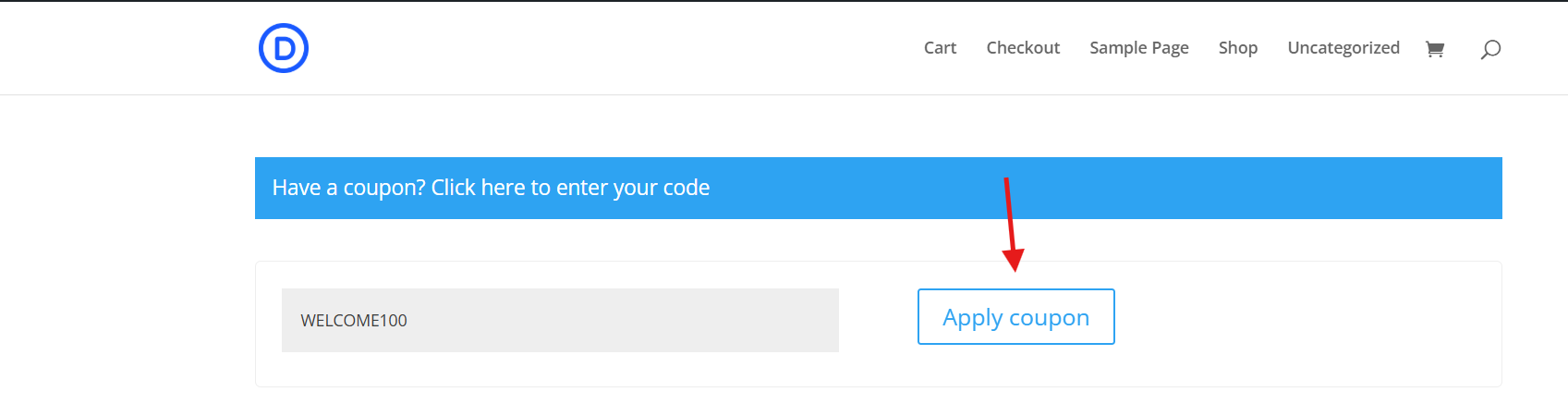
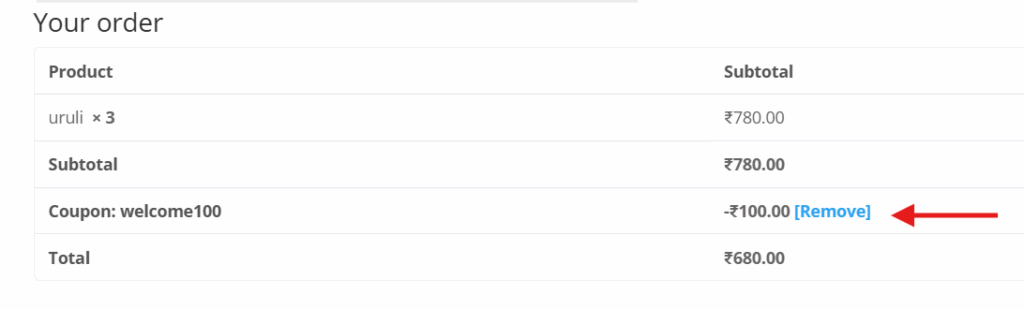
How this works:
- Every time WooCommerce recalculates totals:
- We load settings and the entered code from session.
- If:
- plugin is enabled
- code matches
- discount amount is > 0
- …we add a negative fee with $cart->add_fee().
- The discount appears in the cart/checkout totals like:
Special Discount (WELCOME100): -₹100 - If the code is wrong, and it was just submitted, we show an error message once.
4. Test the Whole Flow
- Configure the plugin:
- Go to WooCommerce → Simple Discount Rules
- Check ✅ “Enable Discount”
- Set:
- Coupon Code: WELCOME100
- Flat Discount Amount: 100
- Click Save Changes
- Go to the store:
- Add a product to cart
- Go to Checkout
- On the checkout page:
- You should see your helper message above billing details.
- You should see the “Special discount code” field.
- Test valid code:
- Enter: WELCOME100
- Wait for the checkout to auto-refresh (or change a field to trigger update)
- You should see:
- A success notice
- A line in the totals:
Special Discount (WELCOME100): -₹100
- Test invalid code:
- Try WRONGCODE
- You should see:
- An error notice: “The discount code you entered is not valid.”
- No discount in totals
- Disable discount:
- Uncheck “Enable Discount” in settings.
- Even with WELCOME100, the discount should no longer apply.
Quick Recap
In this chapter, you:
- Extended your admin settings to configure:
- Enable flag
- Coupon code
- Flat discount amount
- Integrated a custom checkout field using woocommerce_checkout_fields
- Saved the entered code in WooCommerce session
- Applied a flat negative fee via woocommerce_cart_calculate_fees
- Used wc_add_notice() to show success/error messages
You now officially have a working custom discount coupon plugin 🎉
What’s Next?
In Chapter 4, we’ll:
Upgrade this from flat-only to support both flat and percentage discount types — still using a single coupon, but with more flexibility.