Add an Admin Settings Page for the Checkout Message
In Chapter 1, our plugin printed a fixed “Hello from Simple Discount Rules” message on the checkout page. That’s not practical for real-world use.
Now we’ll:
- Add a submenu under WooCommerce
- Create a settings page with a textarea
- Save the message using the WordPress Options API
- Load that message on the checkout page
1. Where the Settings Page Will Live
We’ll add a menu item here:
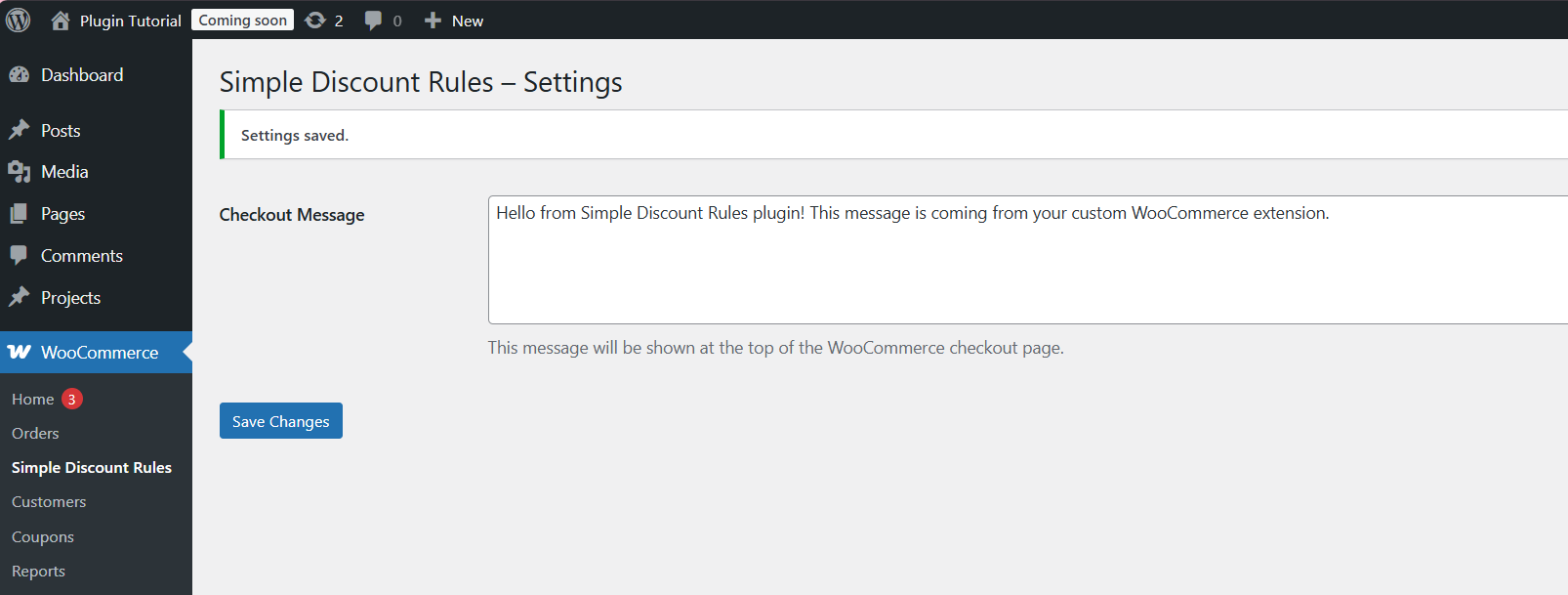
WooCommerce → Simple Discount Rules
Clicking it will open a page with:
- A heading
- A textarea: “Checkout Message”
- A Save button
Technically, we’ll use:
- admin_menu – to register the submenu
- admin_init – to handle form submissions
- get_option() / update_option() – to store the message
We’ll store the message in an option called:
sdr_checkout_message
2. Register the Admin Submenu
Open simple-discount-rules.php and add this code near the bottom, below the existing functions from Chapter 1.
Open your plugin file
Path:
wp-content/plugins/simple-discount-rules/simple-discount-rules.php\
/**
 * Register submenu page under WooCommerce.
 */
function sdr_register_admin_menu() {

    // Only users with manage_woocommerce (store managers/admins) can access.
    $capability = 'manage_woocommerce';

    add_submenu_page(
        'woocommerce',                  // Parent slug
        __( 'Simple Discount Rules', 'simple-discount-rules' ), // Page title
        __( 'Simple Discount Rules', 'simple-discount-rules' ), // Menu title
        $capability,                    // Capability
        'sdr-simple-discount-rules',    // Menu slug
        'sdr_render_settings_page'      // Callback function
    );
}

add_action( 'admin_menu', 'sdr_register_admin_menu' );
What’s happening here?
- add_submenu_page() tells WordPress:
“Under the WooCommerce menu, add a new item that opens our settings page.” - sdr_render_settings_page is a function we’ll write next to output the HTML for the page.
- We lock access to users who can manage_woocommerce (store admins/managers).
3. Handle Form Submission (Admin Init Hook)
We’ll process the POST data in a dedicated function hooked to admin_init. This runs on every admin page load, which is ideal for catching form submits.
Add this below the previous block:
< /**
 * Handle settings form submission.
 */
function sdr_handle_settings_form_submit() {
    // Only handle our form
    if ( ! isset( $_POST['sdr_settings_submit'] ) ) {
        return;
    }

    // Verify nonce
    if ( ! isset( $_POST['sdr_settings_nonce'] ) || ! wp_verify_nonce( wp_unslash( $_POST['sdr_settings_nonce'] ), 'sdr_save_settings' ) ) {
        return;
    }

    // Check capability
    if ( ! current_user_can( 'manage_woocommerce' ) ) {
        return;
    }

    // Sanitize and save
    $message = isset( $_POST['sdr_checkout_message'] ) ? wp_kses_post( wp_unslash( $_POST['sdr_checkout_message'] ) ) : '';
    update_option( 'sdr_checkout_message', $message );

    // Queue a settings saved notice
    add_settings_error(
        'sdr_messages',
        'sdr_message',
        __( 'Settings saved.', 'simple-discount-rules' ),
        'updated'
    );
}
add_action( 'admin_init', 'sdr_handle_settings_form_submit' );
Notes:
- We check for $_POST[‘sdr_settings_submit’] to know the form was submitted.
- wp_verify_nonce() protects against CSRF.
- current_user_can() ensures only allowed users can change settings.
- update_option() stores the message.
- add_settings_error() is a neat way to queue a success message, which we’ll display on the settings page.
4. Render the Settings Page
Now we’ll create the sdr_render_settings_page() function that:
- Loads the saved message
- Displays a form with textarea + Save button
- Displays success notice if settings were saved
Add this below the previous code:
<?php
/**
 * Render the plugin settings page.
 */
function sdr_render_settings_page() {
    // Load current value or fallback default
    $current_message = get_option(
        'sdr_checkout_message',
        __( 'Hello from Simple Discount Rules plugin! This message is coming from your custom WooCommerce extension.', 'simple-discount-rules' )
    );

    // Print admin notices added via add_settings_error()
    settings_errors( 'sdr_messages' );
    ?>
    <div class="wrap">
        <h1><?php esc_html_e( 'Simple Discount Rules – Settings', 'simple-discount-rules' ); ?></h1>

        <form method="post" action="">
            <?php wp_nonce_field( 'sdr_save_settings', 'sdr_settings_nonce' ); ?>

            <table class="form-table" role="presentation">
                <tbody>
                    <tr>
                        <th scope="row">
                            <label for="sdr_checkout_message">
                                <?php esc_html_e( 'Checkout Message', 'simple-discount-rules' ); ?>
                            </label>
                        </th>
                        <td>
                            <textarea
                                name="sdr_checkout_message"
                                id="sdr_checkout_message"
                                rows="5"
                                cols="50"
                                class="large-text"
                            ><?php echo esc_textarea( $current_message ); ?></textarea>
                            <p class="description">
                                <?php esc_html_e( 'This message will be shown at the top of the WooCommerce checkout page.', 'simple-discount-rules' ); ?>
                            </p>
                        </td>
                    </tr>
                </tbody>
            </table>

            <?php submit_button( __( 'Save Changes', 'simple-discount-rules' ), 'primary', 'sdr_settings_submit' ); ?>
        </form>
    </div>
    <?php
}
?>
What this does:
- get_option() fetches the current saved message (or a default if none).
- settings_errors( ‘sdr_messages’ ) prints success/error notices added via add_settings_error().
- wp_nonce_field() adds a hidden security token we’ll verify in sdr_handle_settings_form_submit().
- submit_button() outputs a styled WordPress admin button.
5. Connect the Checkout Message to the Saved Option
In Chapter 1, we hard-coded the message in sdr_checkout_hello_message().
Now we’ll update it to use the saved option instead.
Find this function in simple-discount-rules.php (from Chapter 1):
/**
 * Output the saved checkout message on the WooCommerce checkout page.
 */
function sdr_checkout_hello_message() {
    // Only show when WooCommerce active
    if ( ! sdr_is_woocommerce_active() ) {
        return;
    }

    // Get the message (default provided)
    $message = get_option(
        'sdr_checkout_message',
        __( 'Hello from Simple Discount Rules plugin! This message is coming from your custom WooCommerce extension.', 'simple-discount-rules' )
    );

    if ( empty( $message ) ) {
        return; // Nothing to show
    }

    echo '<p style="padding:10px; background:#f5f5f5; border-left:4px solid #2271b1; margin-bottom:15px;">';
    echo wp_kses_post( $message );
    echo '</p>';
}
add_action( 'woocommerce_before_checkout_form', 'sdr_checkout_hello_message', 5 );
Key changes:
- We now fetch $message from get_option(‘sdr_checkout_message’, default).
- If the message is empty, we skip output.
- We use wp_kses_post() to allow basic HTML (line breaks, bold, links) in the message while keeping it safe.
6. Test the Admin Settings Page
- In WordPress admin, go to:
WooCommerce → Simple Discount Rules - You should see:
- Page title: “Simple Discount Rules – Settings”
- A textarea with the default message.
Change the message to something custom:
🎉 Special Offer: Hello from Simple Discount Rules plugin! This message is coming from your custom WooCommerce extension.
- Click Save Changes.
- You should see “Settings saved.” as a green success notice.
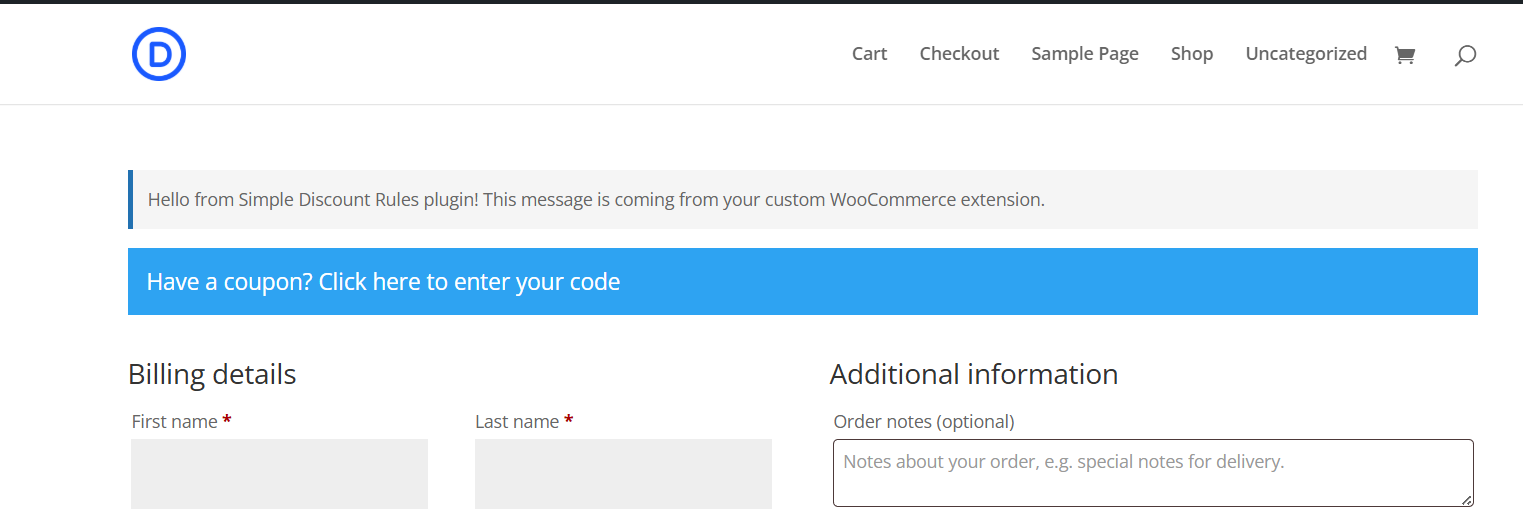
- Now go to the Checkout page on the frontend and refresh:
- Your new message should appear at the top.
Deactivate the plugin and confirm that the message disappears to verify everything is encapsulated in the plugin.
7. Quick Folder & Naming Recap
Your plugin should look like this now:
Inside it, create this basic structure:
wp-content/
plugins/
simple-discount-rules/
├── simple-discount-rules.php ← Main plugin file (required)
├── includes/ ← For additional PHP files (future use)
└── assets/ ← For CSS / JS / Images (optional)
Patterns we’re following:
- Folder & main file: simple-discount-rules/ + simple-discount-rules.php
- Option name: sdr_checkout_message
- Function prefix: sdr_ (prevents name collisions)
What’s Next?
We now have:
✔ A WooCommerce checkout message
✔ A settings screen under WooCommerce
✔ Data flowing from admin → database → checkout
In Chapter 3, we’ll transform this message into a coupon input box and start applying actual discounts to the cart using WooCommerce’s woocommerce_cart_calculate_fees hook.