
Chapter 4: Add Discount Type – Flat or Percentage
What We’ll Do in This Chapter
- Add a “Discount Type” setting in the admin (flat / percentage)
- Update the discount value field to work for both types
- Update our checkout discount logic to handle both cases
We’ll reuse everything from Chapter 3 and just enhance it.
1. Add a “Discount Type” Setting in Admin
We’ll store the type in a new option:
sdr_discount_type
Allowed values:
- flat
- percentage
1.1. Update form submission handler
Find sdr_handle_settings_form_submit() in simple-discount-rules.php and replace it with this version:
/**
 * Handle settings form submission.
 */
function sdr_handle_settings_form_submit() {

    // Check if our form was submitted.
    if ( ! isset( $_POST['sdr_settings_submit'] ) ) {
        return;
    }

    // Check nonce for security.
    if ( ! isset( $_POST['sdr_settings_nonce'] ) || ! wp_verify_nonce( $_POST['sdr_settings_nonce'], 'sdr_save_settings' ) ) {
        return;
    }

    // Check capability.
    if ( ! current_user_can( 'manage_woocommerce' ) ) {
        return;
    }

    // Checkout message (optional helper text).
    $message = isset( $_POST['sdr_checkout_message'] )
        ? wp_kses_post( wp_unslash( $_POST['sdr_checkout_message'] ) )
        : '';

    // Enable discount (checkbox).
    $enable_discount = isset( $_POST['sdr_enable_discount'] ) && 'yes' === $_POST['sdr_enable_discount']
        ? 'yes'
        : 'no';

    // Coupon code.
    $coupon_code = isset( $_POST['sdr_coupon_code'] )
        ? sanitize_text_field( wp_unslash( $_POST['sdr_coupon_code'] ) )
        : '';

    // Discount type: flat or percentage.
    $discount_type = isset( $_POST['sdr_discount_type'] )
        ? sanitize_text_field( wp_unslash( $_POST['sdr_discount_type'] ) )
        : 'flat';

    // Only allow valid types.
    if ( ! in_array( $discount_type, array( 'flat', 'percentage' ), true ) ) {
        $discount_type = 'flat';
    }

    // Discount value (flat amount or percentage).
    $discount_value_raw = isset( $_POST['sdr_flat_discount_amount'] )
        ? wp_unslash( $_POST['sdr_flat_discount_amount'] )
        : '';

    $discount_value = floatval( $discount_value_raw );
    if ( $discount_value < 0 ) {
        $discount_value = 0;
    }

    // Save values.
    update_option( 'sdr_checkout_message', $message );
    update_option( 'sdr_enable_discount', $enable_discount );
    update_option( 'sdr_coupon_code', $coupon_code );
    update_option( 'sdr_discount_type', $discount_type );
    update_option( 'sdr_flat_discount_amount', $discount_value ); // generic discount value

    // Show notice.
    add_settings_error(
        'sdr_messages',
        'sdr_message',
        __( 'Settings saved.', 'simple-discount-rules' ),
        'updated'
    );
}
add_action( 'admin_init', 'sdr_handle_settings_form_submit' );
Note: We’re reusing the same DB key sdr_flat_discount_amount, but now it acts as a generic “discount value”. The label in the UI will explain how to interpret it for each type.
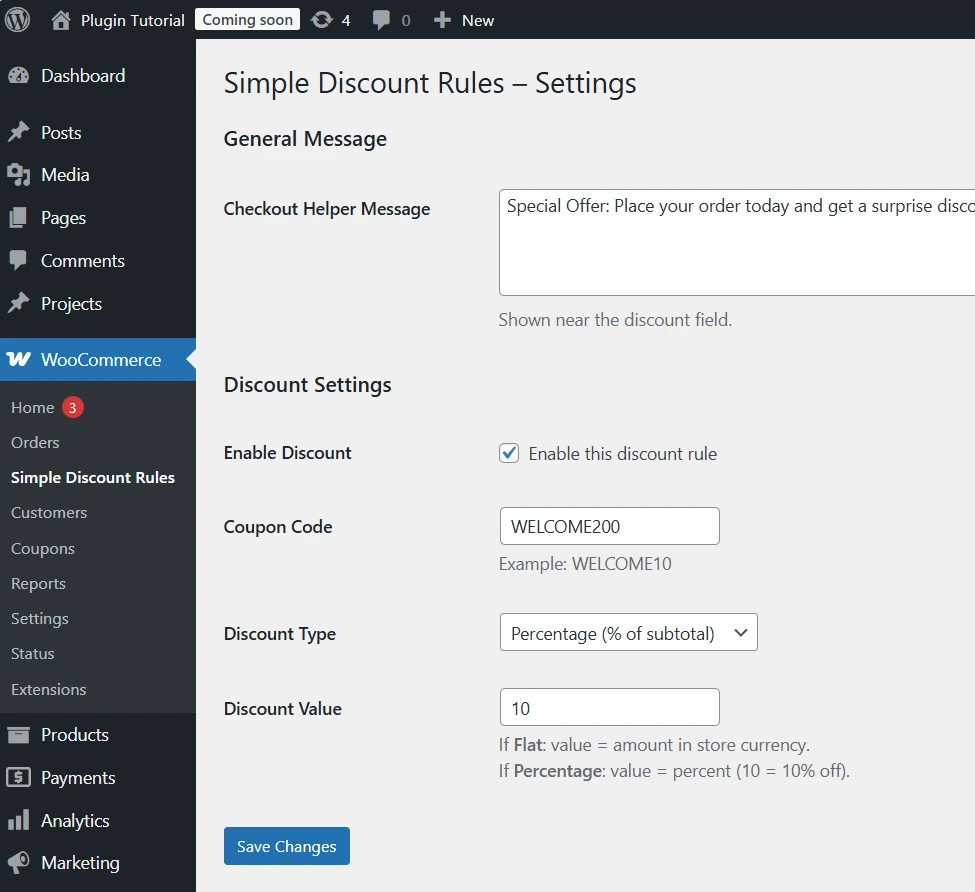
1.2. Update the settings page HTML to show the type dropdown
Now adjust sdr_render_settings_page() so it:
- Reads the discount type from the DB
- Shows a <select> field for flat/percentage
- Updates the label/description for the value field
Find sdr_render_settings_page() and replace it with:
<?php
/**
 * Render the plugin settings page.
 */
function sdr_render_settings_page() {

    // Get current values.
    $current_message = get_option(
        'sdr_checkout_message',
        __( 'Enter your special discount code at checkout to claim the offer.', 'simple-discount-rules' )
    );

    $enable_discount = get_option( 'sdr_enable_discount', 'no' );
    $coupon_code     = get_option( 'sdr_coupon_code', '' );
    $discount_type   = get_option( 'sdr_discount_type', 'flat' );
    $discount_value  = get_option( 'sdr_flat_discount_amount', 0 );

    // Print admin notices.
    settings_errors( 'sdr_messages' );
    ?>

    <div class="wrap">
        <h1><?php esc_html_e( 'Simple Discount Rules – Settings', 'simple-discount-rules' ); ?></h1>

        <form method="post" action="">
            <?php wp_nonce_field( 'sdr_save_settings', 'sdr_settings_nonce' ); ?>

            <h2><?php esc_html_e( 'General Message', 'simple-discount-rules' ); ?></h2>

            <table class="form-table">
                <tr>
                    <th><label for="sdr_checkout_message"><?php esc_html_e( 'Checkout Helper Message', 'simple-discount-rules' ); ?></label></th>
                    <td>
                        <textarea
                            name="sdr_checkout_message"
                            id="sdr_checkout_message"
                            rows="4"
                            class="large-text"
                        ><?php echo esc_textarea( $current_message ); ?></textarea>
                        <p class="description"><?php esc_html_e( 'Shown near the discount field.', 'simple-discount-rules' ); ?></p>
                    </td>
                </tr>
            </table>

            <h2><?php esc_html_e( 'Discount Settings', 'simple-discount-rules' ); ?></h2>

            <table class="form-table">

                <tr>
                    <th><?php esc_html_e( 'Enable Discount', 'simple-discount-rules' ); ?></th>
                    <td>
                        <label>
                            <input type="checkbox" name="sdr_enable_discount" value="yes" <?php checked( $enable_discount, 'yes' ); ?>>
                            <?php esc_html_e( 'Enable this discount rule', 'simple-discount-rules' ); ?>
                        </label>
                    </td>
                </tr>

                <tr>
                    <th><label for="sdr_coupon_code"><?php esc_html_e( 'Coupon Code', 'simple-discount-rules' ); ?></label></th>
                    <td>
                        <input type="text" id="sdr_coupon_code" name="sdr_coupon_code" value="<?php echo esc_attr( $coupon_code ); ?>">
                        <p class="description"><?php esc_html_e( 'Example: WELCOME10', 'simple-discount-rules' ); ?></p>
                    </td>
                </tr>

                <tr>
                    <th><label for="sdr_discount_type"><?php esc_html_e( 'Discount Type', 'simple-discount-rules' ); ?></label></th>
                    <td>
                        <select name="sdr_discount_type" id="sdr_discount_type">
                            <option value="flat" <?php selected( $discount_type, 'flat' ); ?>>
                                <?php esc_html_e( 'Flat amount (fixed discount)', 'simple-discount-rules' ); ?>
                            </option>

                            <option value="percentage" <?php selected( $discount_type, 'percentage' ); ?>>
                                <?php esc_html_e( 'Percentage (% of subtotal)', 'simple-discount-rules' ); ?>
                            </option>
                        </select>
                    </td>
                </tr>

                <tr>
                    <th><label for="sdr_flat_discount_amount"><?php esc_html_e( 'Discount Value', 'simple-discount-rules' ); ?></label></th>
                    <td>
                        <input type="number" step="0.01" min="0"
                            id="sdr_flat_discount_amount"
                            name="sdr_flat_discount_amount"
                            value="<?php echo esc_attr( $discount_value ); ?>">

                        <p class="description">
                            <?php echo wp_kses_post(
                                __( 'If <strong>Flat</strong>: value = amount in store currency.<br>If <strong>Percentage</strong>: value = percent (10 = 10% off).', 'simple-discount-rules' )
                            ); ?>
                        </p>
                    </td>
                </tr>

            </table>

            <?php submit_button( __( 'Save Changes', 'simple-discount-rules' ), 'primary', 'sdr_settings_submit' ); ?>

        </form>
    </div>

<?php
}
?>
Now the admin UI clearly explains how the value behaves for each type.
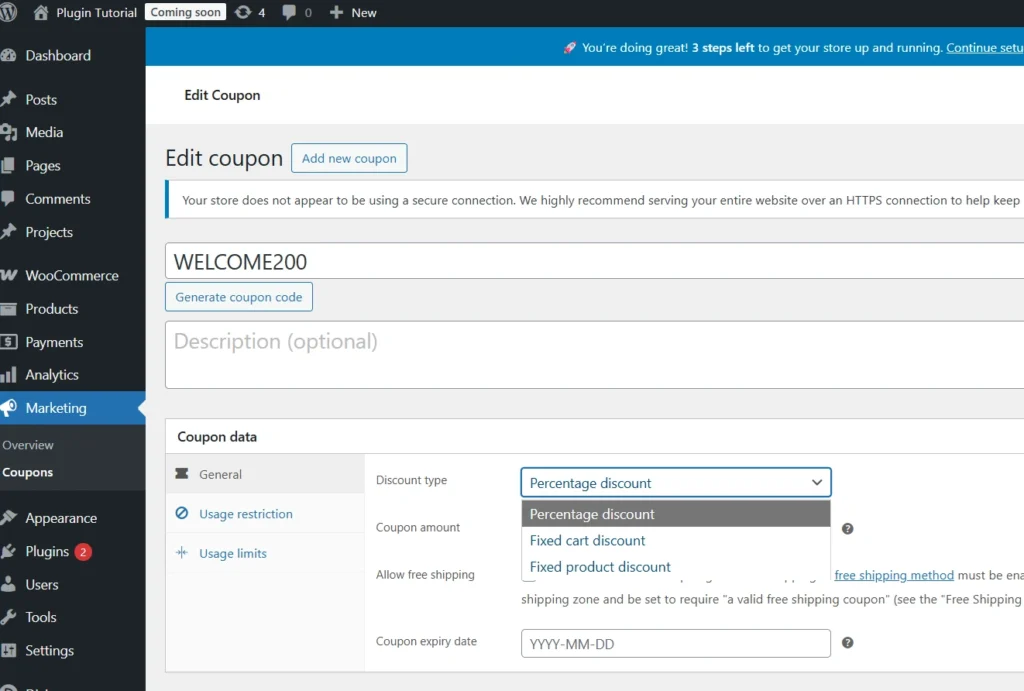
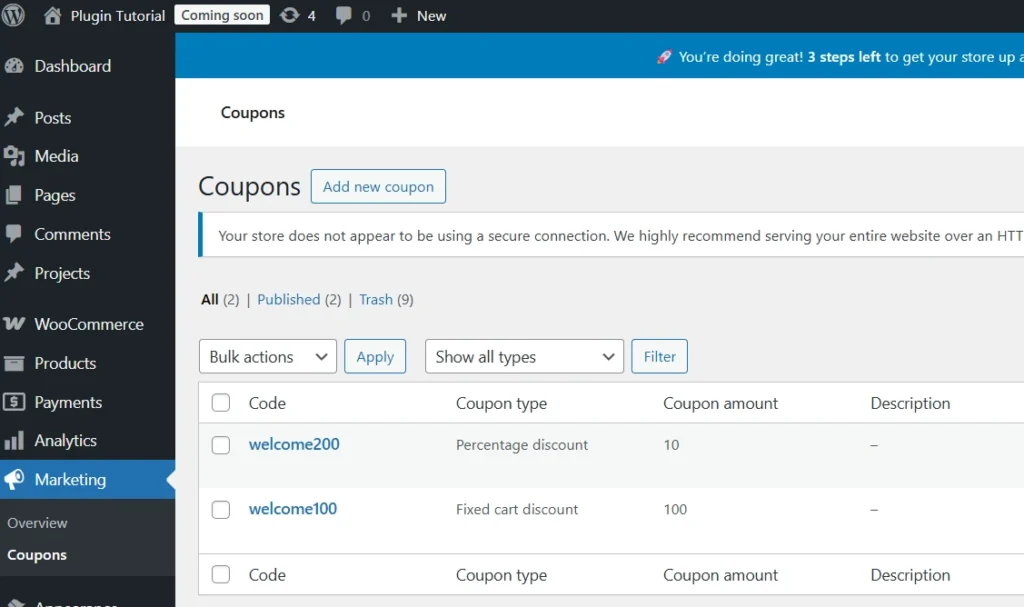
2. Update the Discount Logic to Handle Both Types
Our old function was named sdr_apply_flat_discount() and only cared about a flat amount. Let’s update it to handle both types. You can either:
- Keep the name (simpler), or
- Rename it to something like sdr_apply_custom_discount.
I’ll show an updated version with the same name to minimize changes, but we’ll replace the entire function and its add_action.
2.1. Replace the discount calculation function
Find this in your file:
function sdr_apply_flat_discount( $cart ) {
// …
}
add_action( ‘woocommerce_cart_calculate_fees’, ‘sdr_apply_flat_discount’, 20, 1 );
Replace both with:
<?php
/**
 * Apply custom discount (flat or percentage).
 */
function sdr_apply_flat_discount( $cart ) {

    if ( ! sdr_is_woocommerce_active() ) return;

    if ( is_admin() && ! defined( 'DOING_AJAX' ) ) return;

    // Settings
    $enabled        = get_option( 'sdr_enable_discount', 'no' );
    $coupon_code    = get_option( 'sdr_coupon_code', '' );
    $discount_type  = get_option( 'sdr_discount_type', 'flat' );
    $discount_value = floatval( get_option( 'sdr_flat_discount_amount', 0 ) );

    if ( 'yes' !== $enabled ) return;
    if ( empty( $coupon_code ) || $discount_value <= 0 ) return; // Retrieve entered code from checkout session $entered_code = WC()->session->get( 'sdr_coupon_code', '' );

    if ( empty( $entered_code ) ) return;

    // Code does not match
    if ( strcasecmp( $entered_code, $coupon_code ) !== 0 ) {

        if ( isset( $_POST['sdr_coupon_code'] ) ) {
            wc_add_notice( __( 'Invalid discount code.', 'simple-discount-rules' ), 'error' );
        }

        return;
    }

    // Calculate discount
    $subtotal = $cart->get_subtotal();
    $discount = 0;

    if ( $discount_type === 'flat' ) {

        $discount = min( $discount_value, $subtotal );

    } elseif ( $discount_type === 'percentage' ) {

        $discount = ( $subtotal * $discount_value ) / 100;

        if ( $discount > $subtotal ) {
            $discount = $subtotal;
        }
    }

    if ( $discount <= 0 ) return; if ( isset( $_POST['sdr_coupon_code'] ) ) { wc_add_notice( $discount_type === 'percentage' ? sprintf( __( 'Your %s%% discount has been applied!', 'simple-discount-rules' ), $discount_value ) : __( 'Your special discount has been applied!', 'simple-discount-rules' ), 'success' ); } // Discount label text $label = ( $discount_type === 'percentage' ) ? sprintf( __( 'Special Discount (%s – %s%%)', 'simple-discount-rules' ), $coupon_code, $discount_value ) : sprintf( __( 'Special Discount (%s)', 'simple-discount-rules' ), $coupon_code ); $cart->add_fee( $label, -$discount );
}
add_action( 'woocommerce_cart_calculate_fees', 'sdr_apply_flat_discount', 20, 1 );
?>
Even though the function is still called sdr_apply_flat_discount, it now handles both types. If you want cleaner naming, you can rename the function and the add_action callback to something like sdr_apply_custom_discount.
3. Add a Discount Code Field on the Checkout Page
Instead of a floating form above checkout, we’ll integrate with WooCommerce’s checkout fields system. That way:
- The field looks like other checkout inputs
- WooCommerce handles field re-population and layout
- We can easily read the value when calculating discounts
3.1. Add a custom checkout field
Add this code to simple-discount-rules.php:
<?php
/* ----------------------------------------------------------
   4. ADD DISCOUNT CODE FIELD IN CHECKOUT
---------------------------------------------------------- */
function sdr_add_discount_checkout_field( $fields ) {

    $fields['billing']['sdr_coupon_code'] = array(
        'type'        => 'text',
        'label'       => __( 'Special Discount Code', 'simple-discount-rules' ),
        'placeholder' => __( 'Enter discount code (optional)', 'simple-discount-rules' ),
        'required'    => false,
        'class'       => array('form-row-wide'),
        'priority'    => 999,
    );

    return $fields;
}
add_filter( 'woocommerce_checkout_fields', 'sdr_add_discount_checkout_field' );
?>
This will show a new text input on the checkout page under the billing fields.
3.2. Show our helper message above the field
We’ll show the “Checkout Helper Message” we configured in settings near the field, so customers know there is an offer.
Add this:
<?php
/* ----------------------------------------------------------
   3. SHOW HELPER MESSAGE ABOVE BILLING FIELDS
---------------------------------------------------------- */
function sdr_show_checkout_helper_message() {

    if ( ! sdr_is_woocommerce_active() ) return;

    $msg = get_option('sdr_checkout_message', '');

    if ( empty($msg) ) return;

    echo '<div style="padding:12px; background:#eef7ff; border-left:4px solid #2271b1; margin-bottom:15px;">';
    echo wp_kses_post( wpautop($msg) );
    echo '</div>';
}
add_action( 'woocommerce_before_checkout_billing_form', 'sdr_show_checkout_helper_message', 5 );
?>
🔄 You can now remove the old sdr_checkout_hello_message() function and its add_action() from Chapter 1, because this new helper message replaces it.
4. Apply the Flat Discount When Code Matches
Now comes the money part.
WooCommerce lets you modify totals using the woocommerce_cart_calculate_fees hook. We’ll:
- Check if the plugin is enabled and configured
- Read the entered code from checkout or session
- If it matches the configured admin code, apply a negative fee (discount)
4.1. Store the entered code in session
We want the discount to persist as the user navigates in checkout (e.g., shipping changes, refresh). The simplest approach:
- On each request, if $_POST[‘sdr_coupon_code’] is present → save it to WC()->session
- If not in $_POST, read it from session during fee calculation
Add this:
<?php
/* ----------------------------------------------------------
   5. SAVE ENTERED CODE IN SESSION (checkout AJAX updates)
---------------------------------------------------------- */
function sdr_capture_discount_code_to_session() {

    if ( isset($_POST['sdr_coupon_code']) ) {
        WC()->session->set(
            'sdr_coupon_code',
            sanitize_text_field( $_POST['sdr_coupon_code'] )
        );
    }
}
add_action( 'woocommerce_checkout_update_order_review', 'sdr_capture_discount_code_to_session' );
?>
WooCommerce calls woocommerce_checkout_update_order_review whenever the checkout form is updated, so this keeps the code in sync.
5. Test Scenarios
Time to verify both modes.
5.1. Flat discount mode
- Go to WooCommerce → Simple Discount Rules
- Set:
- ✅ Enable Discount
- Coupon Code: WELCOME100
- Discount Type: Flat amount
- Discount Value: 100
- Save changes.
- In the store:
- Add products worth more than 100
- On checkout, enter WELCOME100
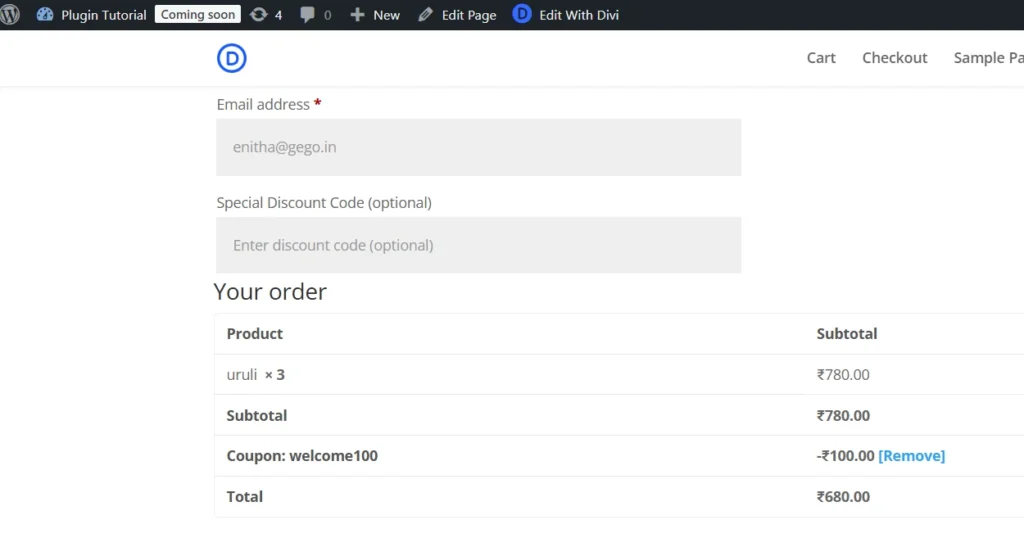
- You should see:
- Success notice
- Discount line like:
Special Discount (WELCOME100): -₹100
If cart subtotal is less than ₹100, the discount should be capped at the subtotal.
5.2. Percentage mode
- In settings, change:
- Discount Type: Percentage
- Discount Value: 10 (for 10% off)
- Save changes.
- In the store:
- Add products (say subtotal ₹1,000)
- Enter WELCOME100 on checkout (or whatever code you set)
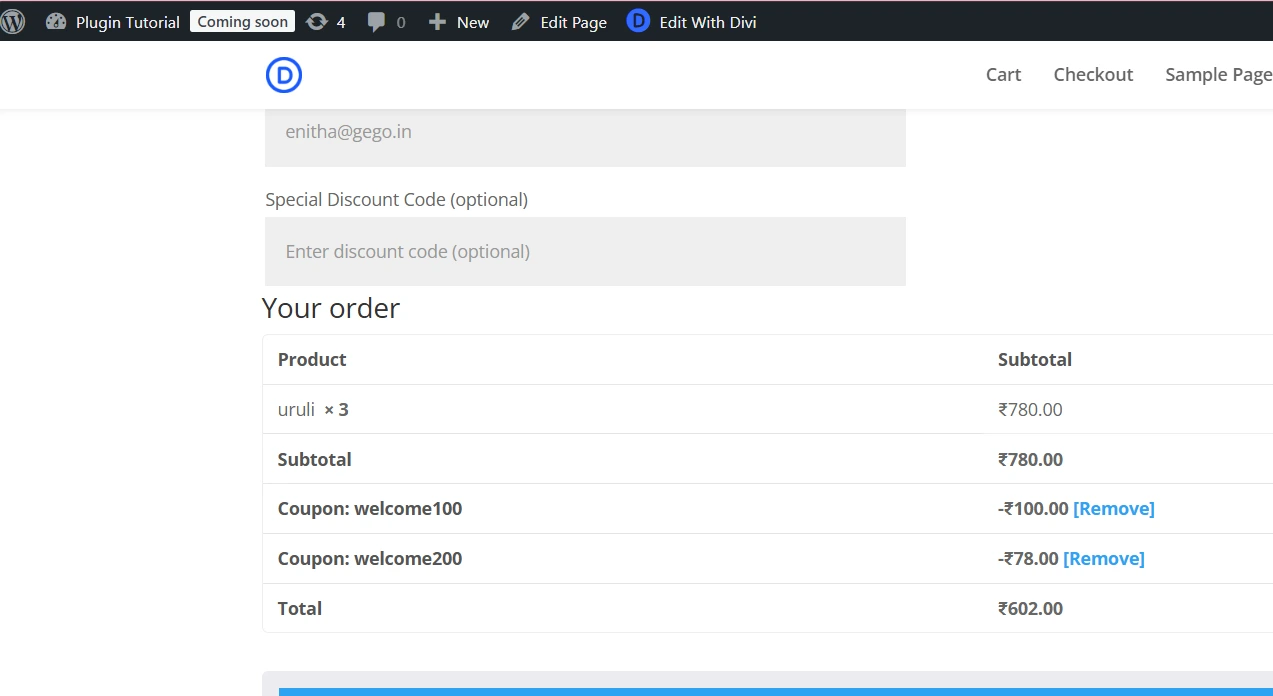
- You should see:
- Success notice: “Your 10% discount has been applied!”
- Discount line like:
Special Discount (WELCOME100 – 10%): -₹100
- Change cart amount and verify the discount scales correctly (e.g., ₹2,000 cart → ₹200 off).
5.3. Invalid code & disabled discount check
- Enter a wrong code → should show error notice, no discount.
- Uncheck “Enable discount” → even with the right code, discount should not apply.
Quick Recap
In this chapter you:
- Added a discount type dropdown (flat / percentage)
- Reused the same discount value field for both meanings
- Updated your calculation logic to:
- Subtract a fixed value for flat
- Subtract a proportional value for percentage
- Updated labels and notices to reflect the discount type
Your plugin is now flexible enough to handle two common pricing strategies.
What’s Next?
Next chapter (Chapter 5), we’ll start adding constraints:
Add Minimum Order Value and Maximum Order Value settings, so your coupon only works within a certain cart total range (e.g., “10% off for orders between ₹1000 and ₹5000”).